Friday, 18 June 2010

Tips & Tricks: Table of Contents in Google documents

Tips & Tricks: Table of Contents in Google documents: "Like in a book, the table of contents in a document is an important element that keeps readers and authors organized. It allows you to create a list of links at the beginning of your document that point to different sections of that document. This can be useful for drafting term papers, design documents or restaurant menus. Once you’ve created your table of contents, you can easily update its links as you edit each section of your document.

To make a table of contents, you need to mark each section of your document with a heading. To do this, highlight the appropriate text, and then select a heading size from the style menu in the toolbar.


To revert a heading to normal text, simply select the Normal option from the same drop down menu; doing so will also remove that link in the table of contents after you update the table of contents.

After you’ve marked each section with a heading, your document could look like this:


You can then add a table of contents from the Insert menu.


After you’ve added a table of contents, it will automatically create a link to each heading in your document.


As you update your document, you can easily update the table of contents by clicking the Update now button in the top right of the table of contents.

Posted by: John Day Richter, Software Engineer


"

Friday, 11 June 2010

Settle trivia debates anytime, anywhere

Settle trivia debates anytime, anywhere: "Last month we launched a way to provide short answers to search queries, and it's now available on your iPhone, Palm WebOS or Android-powered device in English. If you’re like us, you may sometimes engage in trivia matches with friends on topics as far ranging as, what continent is Turkey in?, Star Wars release date?, or Augustus’ successor? Now you can settle that debate there and then by searching Google from your mobile; you can speak your question into Google Search on Android or Google Mobile App for iPhone, or you can visit google.com from your mobile browser to type your search.

If your friends challenge the answer provided in Google Search results, you can corroborate the information with a list of websites by clicking on the “Show sources” link. The source list includes the relevant text from each page so you can quickly verify whether Google interpreted the context of the answer correctly. You can also click through to the original website to get all the details.

We continue to work on providing short answers to more questions. Here are some additional examples to try:
  • Who’s taller? [height of kobe bryant] or [height of paul pierce]
  • Geography trivia? [capital of massachusetts], [language in netherlands]
  • Literature trivia? [author of les miserables], [george eliot’s gender]
  • Movie trivia? [release date of shrek], [director of harry potter 3]
  • Music trivia? [composer of four seasons], [birthday of lady gaga]
Posted by Nick Fey, User Experience Designer and Mike Buchanan, Software Engineer, Google Mobile Team


"

Tuesday, 08 June 2010

Follow your football team in South Africa, wherever you are

Follow your football team in South Africa, wherever you are: "Whether you’ll be in South Africa in person this month, or simply cheering your team on from back home, our new tools for football fans can help you soak up the atmosphere and follow your team wherever you are in the world.

You can check out the brand new Street View imagery for South Africa which includes amazing pictures from seven of South Africa’s new football stadiums, including Soccer City in Johannesburg, Peter Mokaba Stadium in Polokwane and Moses Mabhida Stadium in Durban. Each one can be explored from pitch-level in 360 degrees, both inside and out—see a preview on the Lat Long blog. These detailed images were collected over the last few months, using the Street View Trike and some serious pedal power!


You can also zoom around the host cities and stadiums in 3D. Simply turn on the 3D buildings layer in Google Earth or switch to Earth View in Google Maps, and zoom in to the chosen destination. All 10 of the football stadiums have been modelled in amazing 3D detail, as well as the South African cities of Rustenburg, Nelspruit, Polokwane, Cape Town, Durban, Pretoria, Port Elizabeth, Bloemfontein and Johannesburg.

To make it easier for people to find all these great places, South African Tourism have provided information on the most important sights. Visit maps.google.com/exploresouthafrica to start virtually exploring South Africa.

If you’re staying back home but want to find a great place to watch the match with your friends, take a look on Google Maps and look for the special football icon—that tells you that the location is one of tens of thousands of businesses who have added themselves to Google Places as a football viewing location.

Our first global Doodle 4 Google competition is well underway, with tens of thousands of children in 17 countries around the world sending us their amazing designs for a doodle around the theme of “I Love Football.” The winning doodle will be displayed internationally on the Google homepage for a day on July 11, 2010.

To make it easy for you to customize your photos to show the world which team you’re cheering for, we’ve launched a set of football-themed photo effects in Picnik. With just a few clicks, you can add digital face paint, soccer-themed stickers and team flag overlays, customized for each of the 32 qualifying teams.

Finally, it’s not just the professional players who’ve been put through their paces ahead of kick-off. In the run-up to the games, fans from around the the world have joined the legendary Dutch midfielder Edgar Davids on his Street Soccer Tour for Charity from Amsterdam, London and Paris and to eight cities in Senegal, Ghana, Kenya and South Africa. Edgar and his team of Street Soccer Legends have been competing against local players as they make their journey to South Africa and you can watch them on YouTube.

May the best team win!

Update 12:09PM: Updated link to Picnik photo effects.

Posted by Yonca Brunini, Marketing Director, Southern and Eastern Europe, the Middle East and Africa (SEEMEA)


"

See collaboration in action on Google Docs

See collaboration in action on Google Docs: "Collaboration is at the heart of the modern workspace, yet many businesses still run cumbersome client-side software that makes it unnecessarily difficult to work together. With Google Docs, coworkers can collaborate in real-time on documents, spreadsheets, presentations, and drawings. Instead of creating a document, sending it as an attachment, receiving multiple revisions, and then having to merge edits, with Google Docs everyone can work on the same version at the same time.


If you've never tried our web-based documents, spreadsheets and presentations, now you can instantly take a test drive at docs.google.com/demo. No need to download any software or even sign in -- just start editing right in your browser. Better yet, you can share the unique link provided with others to try out real-time collaboration together.


Google Docs is designed to help people be more productive than ever before. But don’t take our word for it, take Google Docs for a spin and let us know what you think. To learn more about how Google Docs make your teams more efficient, visit google.com/apps/docs.


Posted by Scott Johnston, Product Manager, Google Apps


"

Fort McHenry, Baltimore, Maryland.

Wednesday, 26 May 2010

Gmail tips for businesses, big or small

Gmail tips for businesses, big or small: "Editor's note: This is the third post in a series to celebrate National Small Business Week. Previous posts highlighted two businesses (Revenue Spark and Smart Furniture) that have adopted Google Apps to help run IT more efficiently. We’ll now turn to ways that individual tools within the Google Apps suite are being used by small businesses everywhere.

Many businesses that use Gmail tell us it has fundamentally changed the way they manage email and communicate on a daily basis. They’re not alone ‒ since Gmail launched 6 years ago, it has become one of the most popular email applications in the world. However, we find that even avid Gmail users may not know about all the rich features and functionality that can help them work smarter.

To get every business up to speed, we posted some tips on today’s Gmail Blog for getting the most out of Gmail at work. Take a look, try them out, and feel free to share them with your colleagues.

Posted by Michelle Lisowski, the Google Apps team


"

Thursday, 20 May 2010

Hands-on with the Android Kindle app [#io2010]

Hands-on with the Android Kindle app [#io2010]: "

Amazon Kindle app for Android

The Android Amazon Kindle app: Coming this summer. The Android Amazon Kindle hands-on video: Coming right now, after the break. It's not a bad little app. Download and read ebooks right on your phone, change the font size and background color, and all the usual bells and whistles you'd expect. Check it out.


read more


"

Friday, 14 May 2010

Five more languages on translate.google.com

Five more languages on translate.google.com: "(Cross-posted from the Google Translate Blog)

At Google, we are always trying to make information more accessible, whether by adding auto-captioning on YouTube and virtual keyboards to search or by providing free translation of text, websites and documents with Google Translate. In 2009, we announced the addition of our first “alpha” language, Persian, on Google Translate. Today, we are excited to add five more alpha languages: Azerbaijani, Armenian, Basque, Urdu and Georgian — bringing the total number of languages on Google Translate to 57.

These languages are available while still in alpha status. You can expect translations to be less fluent than for our other languages, but they should still help you understand the multilingual web. We are working hard to “graduate” these new language out of alpha status, just as we did some time ago with Persian. You can help us improve translation quality as well. If you notice an incorrect translation, we invite you click 'Contribute a better translation'. If you are a translator, then you can contribute translation memories with the Translator Toolkit. This helps us build better machine translation systems especially for languages that are not well represented on the web.

Collectively, Armenian, Azerbaijani, Basque, Georgian and Urdu have roughly 100 million speakers. We hope that these speakers can now more easily access the entire multilingual web in their own language. Try translating these and other languages at translate.google.com. Here are some phrases from the new alpha languages to get you started:

Baietz lehenengoan
میں خوش قسمت محسوس کر رہا ہوں
բախտաւոր եմ զգում
Mən şanslıyam
იღბალს მივენდობი

Posted by Ashish Venugopal, Research Scientist


"

Thursday, 13 May 2010

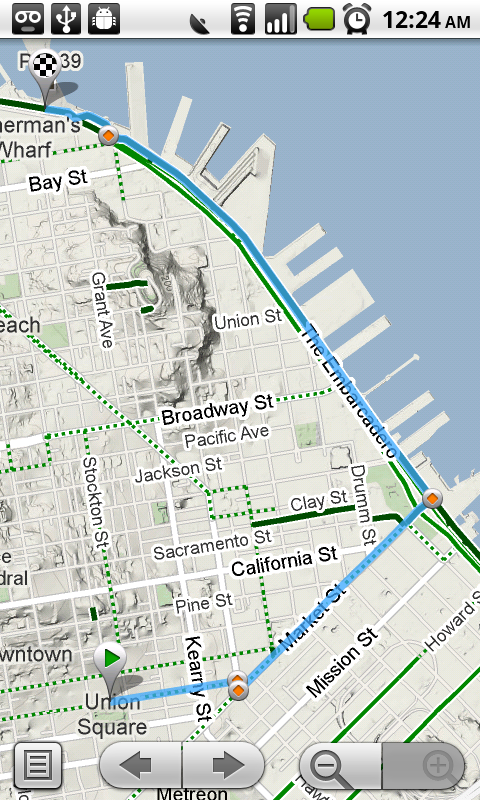
Google Maps for Android Gets Biking Directions, Navigation Shortcut, Sharing, and More

Google Maps for Android Gets Biking Directions, Navigation Shortcut, Sharing, and More: "Starting today, Google Maps for mobile has a few new ways to help you and your friends quickly get to where you’re going whether you’re on 4 wheels or 2 (or maybe even 3). With Google Maps 4.2 for Android you can now get biking directions on the go, start Navigation from your Home screen, share places with friends, and more.

Biking directions
Since launching biking directions on desktop Google Maps, we’ve wanted to get you biking directions, lanes, and trails on your phone too. Just in time for National Bike Month, select the bike icon when getting directions to get an optimal bicycling route in the U.S. If you’re in the mood for a more scenic ride, you’ll also see the Bicycling layer on the map which shows dedicated bike-only trails (dark green), roads with bike lanes (light green), or roads that are good for biking but lack a dedicated lane (dashed green). You can always turn on this layer from the Layers menu to pick your own route. Add in the Labs’ Terrain layer, and you can decide to either climb or avoid that big hill on the way home!


Google Navigation shortcut
If you’re driving instead of riding, we wanted to make it easier and faster for you to get on the road with Google Maps Navigation as soon as you’re ready. With the new Navigation shortcut, you can pick a destination and be on your way with as little as 2 taps of your finger. Select the “Navigation” icon in your phone’s app launcher to get the new destination selection view. Then, speak or type your destination, pick one from your contacts, choose a starred place, or select a recent destination. Navigation will begin and you’re good to go. Make it even easier on yourself by adding the Navigation icon right on your Home screen.


Sharing
Once you figure out where you’re going, why not get some friends to meet you there? From any search results page, choose to “Share this place” to send that place’s info, such as its address and phone number, to whomever you like. If you want to meet someone on a street corner or gather friends at an outdoor concert, you can also send an exact location from the map -- even a snapshot of your current location. Just use the share option after selecting a point on the map, your “My Location” blue dot, or yourself in Latitude if it’s enabled. Whether you’re sharing a place or a location, you’ll be able to send it to small groups via an email or text message or send it widely with apps like Google Buzz, Facebook, or Twitter.

Get these new features by searching for Google Maps in Android Market from Android 1.6+ phones (On your phone now? Tap here). Update Maps to version 4.2, available in all the countries and languages where Maps is currently available. Visit our Help Center to learn more, ask questions in our Help Forum, or give us suggestions and vote on other people’s on the Mobile Product Ideas page.

Posted by Michelle Chen, Software Engineer, Google Mobile Team


"

What’s different about the new Google Docs?

What’s different about the new Google Docs?: "Editor’s Note: This post is more technical than most posts on the Google Docs blog.

A month ago we introduced the latest version of the Google document editor. The new editor comes with features like a ruler, tabs stops, and floating images. Those features might seem pretty basic, but they’re nearly impossible to support in a regular online text editor. This post unwraps some of the core technical changes with the new editor to make this new functionality possible.

The old Google documents

As background, most online text editors (including the old Google documents) use an editable HTML element, which means the application tells the browser to make a certain string of text editable, and the browser takes care of letting the user edit that text. So when you type in the old Google document editor, the browser inserts the characters you type into the page’s HTML. Likewise, when you bold a word, the browser changes the HTML so that the word displays as bold.

Relying on the browser like this has several advantages:
  1. Easy implementation -- Browsers know when a user triple clicks, they want to select an entire paragraph. The application doesn’t need to think about these basic text behaviors.

  2. Easy to make it fast -- The browser (not the app) handles the most computationally intensive task: text layout. Since layout is a core component of browser functionality, you can trust that layout performance has already been heavily optimized.
But using the browser’s native text editing means less control over how the document behaves: if one browser has a bug in its list behavior, people using that browser will have trouble working with lists in Google Docs and we won’t be able to fix the behavior for them. It also means we can support only the least common denominator of features: if inserting tabs works in some browsers but not others, we can’t really support it because the doc won’t look right if you open it in a browser that doesn’t understand tabs.

The new Google documents

To get around these problems, the new Google document editor doesn’t use the browser to handle editable text. We wrote a brand new editing surface and layout engine, entirely in JavaScript.

A new editing surface

Let’s start by talking about the editing surface, which processes all user input and makes the application feel like a regular editor. To you, the new editor looks like a fairly normal text box. But from the browser’s perspective, it’s a webpage with JavaScript that responds to any user action by dynamically changing what to display on each line. For example, the cursor you see is actually a thin, 2 pixel-wide div element that we manually place on the screen. When you click somewhere, we find the x and y coordinates of your click and draw the cursor at that position. This lets us do basic things like slanting the cursor for italicized text, and it also allows more powerful capabilities like showing multiple collaborators’ cursors simultaneously, in the same document.

Multiple users editing in the same paragraph

A new layout engine

By far the most difficult thing the editor does is figure out where to draw text. For this, we built a new layout engine. Here’s an example of how the new engine works: say you type the letter ‘a’. We notice you pressed the ‘a’ key and respond by drawing a single ‘a’ off-screen. We then measure the width and height of that ‘a’, combine those measurements with the x and y position of your cursor, and place the ‘a’ at the correct spot on the screen. If you’re in the middle of a word, we push the characters after your cursor over. If you’re at the end of a line, the editor moves your word to the next line and pushes any overflow to the lines after it.

Tab stops and other basic features are impossible to support if you’re using the browser’s HTML layout engine for your text. That’s why we wrote our own engine: once we tell our layout engine how to draw a feature, we don’t have to worry about which features browsers support.

The formatting in this basic menu couldn’t be supported without writing a new layout engine

Improved collaboration

What I’ve just described is pretty standard architecture for a desktop word processor. But the new Google Docs isn’t just an online version of existing desktop software: it’s designed specifically for character-by-character real time collaboration. That kind of collaboration is only possible because we built the editor around a technology called operational transformation. It’s what lets multiple people edit the same area of a document at the same time without needing to wait for the server to say a particular edit is okay.

Building an extensible, fully collaborative online word processor required rewriting every part of the document editor from scratch. We’re still adding more features and polish before turning it on for everyone, but for an early peek, you can opt-in by visiting the Editing tab in the Google Docs settings.

Posted by: Jeff Harris, Product Manager, Google Docs


"

Google Maps for Android Now Offers Biking Directions

Google Maps for Android Now Offers Biking Directions: "

Google today announced that Google Maps 4.2 for Android will offer biking directions. Simply select the bike icon and Google Maps for Android will provide you with a bike-friendly map with directions to your destination. Google Maps now includes biking directions, lanes and trails. With this update, we’ll patiently wait for the Nexus One bike dock.


via Google Mobile Blog


"

Sunday, 31 January 2010

"Barack, I know Abe Lincoln...

So I said to him, "Barack, I know Abe Lincoln, and you ain't Abe Lincoln."

You cannot help the poor by destroying the rich.
You cannot strengthen the weak by weakening the strong.
You cannot bring about prosperity by discouraging thrift.
You cannot lift the wage earner up by pulling the wage payer down.
You cannot further the brotherhood of man by inciting class hatred.
You cannot build character and courage by taking away people's initiative and independence.
You cannot help people permanently by doing for them, what they could and should do for themselves.


........Abraham Lincoln